Plan Advice Manager (PAM) helps you automate the steps you typically go through with your Plans quarterly. This includes automating status recommendations and updates, sending Reports to the Plan Vault, distributing Fund Change Instructions, and emailing reports to Plan Sponsors and other Plan contacts.
PAM Overview
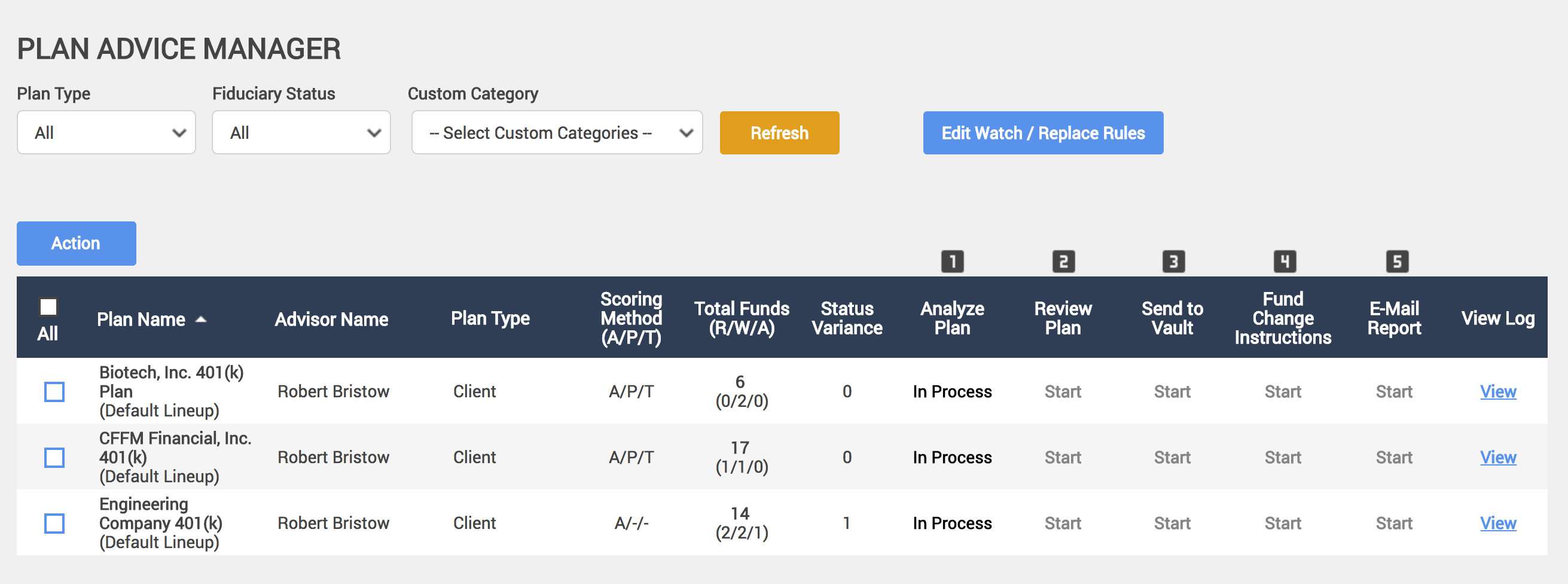 The numbered columns represent the five steps in the Plan Advice Manager process. The links for each plan will change as you work through the PAM process.
- Each step reflects Start and Done when that particular action has been completed.
- The step(s) will reflect N/A if the step is not needed. Additionally, the step will not be linkable if it’s not in the next step sequence to be executed.
- The steps are as follows:
- Analyze Plan – Indicates the plan is eligible to be analyzed, or needs to be analyzed.
- If a Plan you would like to use PAM for is not in your list, go to the Plan Info screen and check the Use in Plan Advice Manager setting.
- Review Plan – Indicates the status of the Review Step of Plan Advice Manager.
- Send to Vault – Generate and send a report to the Plan Vault
- Fund Change Instructions - Indicates at least one fund in the plan has a status of R (to be replaced) or A (to be added), and the mapping process has not been completed.
- Email Report – Indicates that a Plan report has been archived and is available to be emailed.
- Analyze Plan – Indicates the plan is eligible to be analyzed, or needs to be analyzed.
Jump To:
PAM Setup - Watch & Replace Rules
Watch & Replace Rules allow you to automatically flag Funds to Watch List or Replace status based on the fund evaluation criteria for your Plan. Simply set the thresholds and FirmPlus will automatically change the status when any fund within your plan(s) hit the threshold.

Set Watch & Replace Rules
- Click the gear (Admin Menu) icon in the upper right-hand corner of the screen.
- Click Plan Advice Manager Settings. The PAM Settings screen will load.
- Set the Watch Rules for Consecutive Quarters Failed and Total Failing Quarters by selecting a number from the drop-down list.
- Set the Replace Rules for Consecutive Quarters Failed and Total Failing Quarters by selecting a number from the drop-down list.
- See Status Update section and choose the following additional rules-
- Allow Watch/Replace Rules to remove "Watch" or "Replace" status and set back to "Existing" if rules are no longer met.
- DO NOT remove "Watch" or "Replace" status per Watch/Replace Rules (user to manually update). Therefore no funds will automatically be reset to "Existing" if they were previously "Watch" or "Replace."
- Click Save at the bottom of the screen.
Running PAM Process
- 1
-
Analyze Plan
- The PAM Analyze Plan process does the work to find funds that should be classified as on Watch or To-Be-Replaced status. These processes are based on the Watch and Replace rules established above. The results of the analysis are shown on Fund Lineup for the plan.
- Possible recommended status indicators are R for Replace or W for Watch.
- Adding a fund or changing criteria for a plan will trigger the need to run Analyze Plan again.
- The analysis process can be run from Fund Lineup if needed.
- Analyze Plan is ran in the background when initiated and can be ran for multiple Plans at the same time. It may take some time to complete if there are several funds in the Plan(s).
Starting Analyze Plan
- To begin the analysis check the box to the left of the Plan Name(s) you wish to include in your analysis.

- Click the Action button on the left side of the screen and then click Analyze Selected Plans.
- The Send Notification box will appear. Enter an email address to have the Analyze Plan Complete notice sent to.
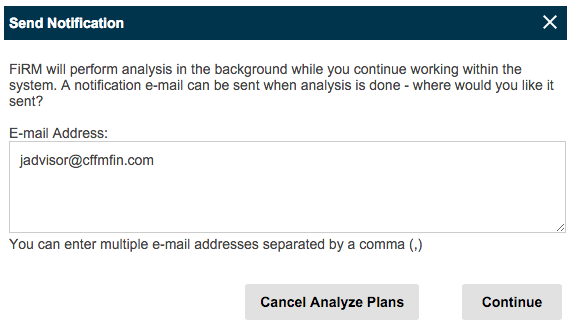
- Click Continue.
The PAM Analyze Process will then begin. The status for the Analyze Plan column will update to In Process for all selected Plans. You will receive an email notification at the address specified above when the process is complete. You can then move on to Step 2.
- 2
-
Review Plan
- PAM will indicate that Analysis is complete by sending an email, and also showing a Start link in the Review Plan column.
- Once analysis is complete, the Variance column indicates how many funds in a Plan have Status Recommendations that don’t match the current status recommendation for a fund.
- Click the Start link under Review Plan for a Plan in your PAM list. FirmPlus will send you to the Fund Lineup screen.
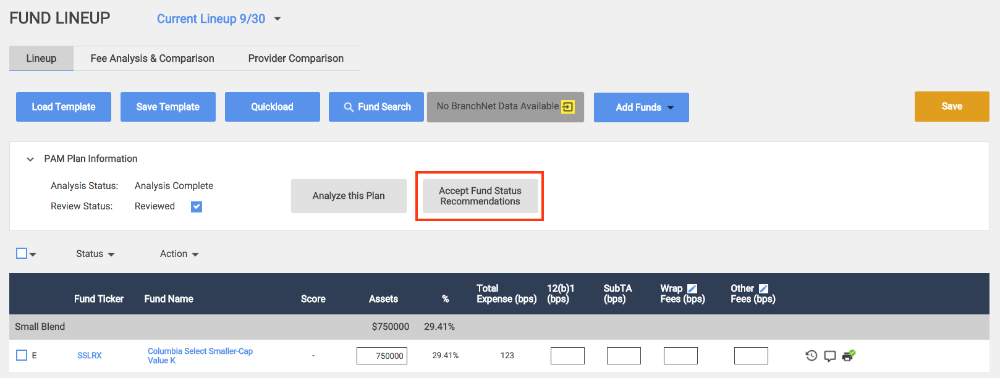
- Review the Analysis Status Recommendations.
- Review all the Fund Status mismatches and decide what status each fund should have (PAM recommendation is not required to be utilized).
- Add funds that need to be replaced. When a fund is added, the Analyze Plan process is required again (to apply the analysis criteria on the fund that was just added). Analysis can be ran directly from the Fund Lineup screen in the PAM drop-down at the top of the screen.
- Review all the Fund Status mismatches and decide what status each fund should have (PAM recommendation is not required to be utilized).
- Check the Review Status checkbox near the top of the Fund Lineup in the PAM drop-down. (This allows the advisor to track the review status of the Plans).
- Click Accept Fund Status Recommendations to save your selections. You will return back to the PAM screen.
- 3
-
Send to Vault
Once the Plan data is reviewed, the option of Generating the Report and/or sending the Report to the Plan Vault is available.
- Click Start in the Send to Plan Vault column for a Plan in your list.

- Configure your report or load a Report Template and click Generate.
- Once the report has been generated completed you can view the Report and/or send the Report to the Plan Vault.
- 4
-
Fund Change Instructions
FirmPlus allows you to generate a document to instruct a Recordkeeper (directly or via the Plan sponsor) on how to handle fund changes.
- Start under the Fund Change Instructions column. You will arrive on the Fund Change Management screen.
- The first tab of the Fund Change Management system is Fund Mapping.

- For each fund in the list select an Action to either Close or Replace the fund. For funds that are set to Replace, Map the fund to another fund in your Plan's fund lineup.
- Click Save Mapping when finished.
- Click the Recordkeeper Instructions tab.

- The Recordkeeper Instructions page allows you to generate a document with instructions based on your saved Fund Mapping completed in Step 3 above. A preview of those actions is at the bottom of the screen.
- Select a Fund Change Instructions template.
- Enter an Effective Date.
- Click Generate to download the Fund Change Instructions Document or Send to Vault to store the Fund Change Instructions Document in the Plan Vault.
- If you need to manage the Recordkeeper Contacts for this Plan click the Recordkeeper Contacts tab. You can create your Recordkeeper Contacts here which can be used in the next step to send via email the Fund Change Instructions document.

- 5
-
Email Report
FirmPlus allows you to email a Report and/or Fund Change Instructions to your client and any Plan contact.
- Click Start in the Email Report column. You will be take to the Plan Vault.

- Locate the document in the Plan Vault you wish to send and check the box next to the Document Name.
- Click the Select Action drop down and select Email Selected.
- Click the Go button.
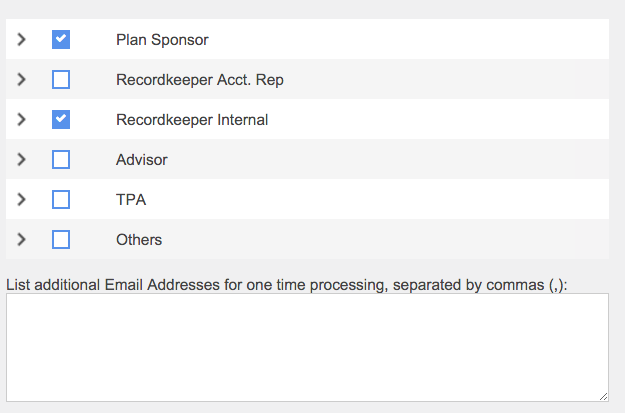
- Select the Plan Contact Roles for who you wish to email the document to. You can also enter email addresses manually in the text box at the bottom of the screen.
- Click Next.
- On the Notification Email select an Email Template from the drop down or create a new message in the Email Content text box.
- Be sure to mark the Include Documents as Attachments box below the Subject to include the selected document.
- Click Next.
- Review the message on the Confirmation screen.
- If everything looks good click Send Notification to send your email and attached document.