IPS Templates allows you to create and manage your templates for generating IPS documents for your Plans. A unique IPS Template can be created for each Fiduciary Status (3(38), 3(28), Non-Fid) and Fund Evaluation Criteria type (LPL, Custom).

Accessing IPS Templates
- Access the Plan List screen by clicking Plan List in the navigation menu at the top of the page.
- Click on a Plan Name.
- Click the gear icon in the upper right-hand corner next to the FirmPlus logo. The menu will slide in from the right.
- Click Templates and then IPS Templates.
Creating an IPS Template
- Click the Add New Template button to the right of the screen
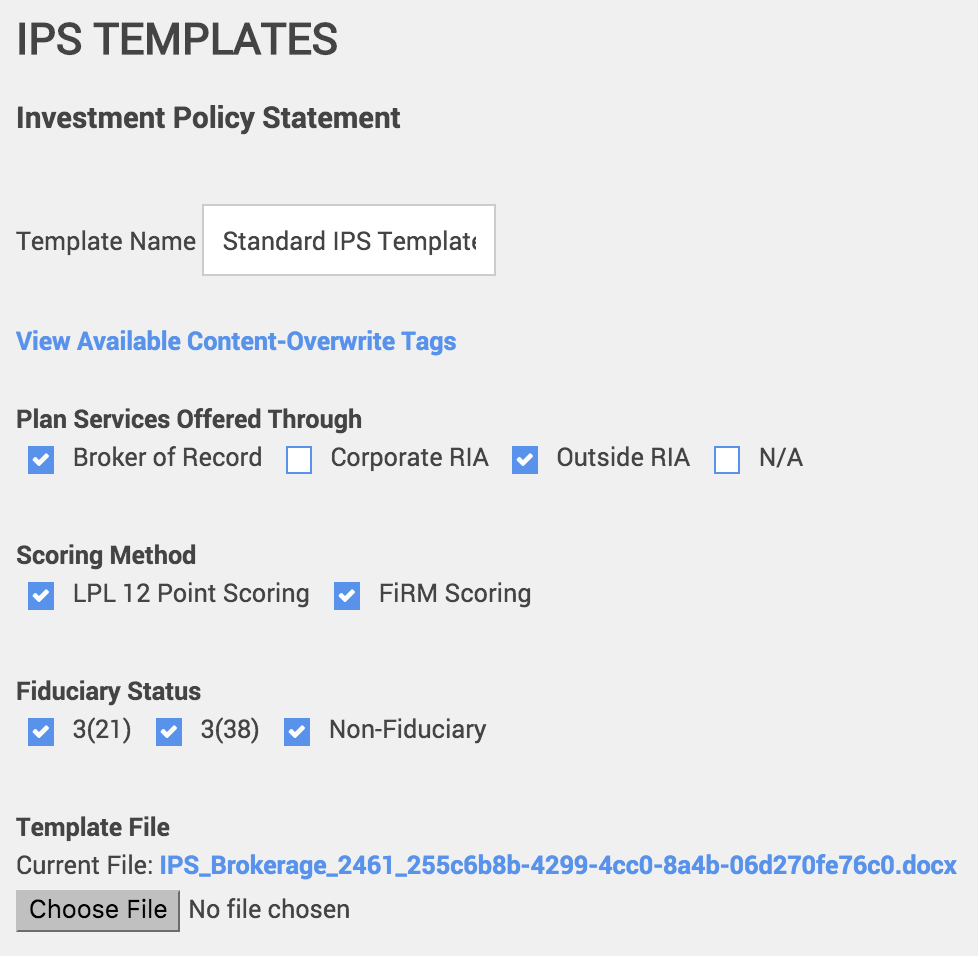
- Enter a Template Name.
- Select the Plan Services Offered Through, Scoring Method and Fiduciary Status option which should apply to Plans that will use the IPS. You can select any combination, including multiples for the same setting.
- Upload your Template File by clicking Choose File and locating the file.
- Click Save on the right side of the screen to save your IPS Template.
Clicking the View Available Content-Overwrite Tags will give you a listing of all available content-tags that can be used as part of a template. This will assimilate plan and advisor profile information previously entered.
All template documents must be loaded into the tool as .docx file types.
Editing an IPS Template
- Click on the edit (pencil) icon next to IPS Template name you wish to edit.
- Make changes to the settings for the IPS Template as needed.
- If you need to replace the the IPS Template File, upload your Template File by clicking Choose File and locating the file.
- Click Save on the right side of the screen to save the edits to your IPS Template.