Custom Categories allow you to define your own custom filter for Plan funds in Fund Management. Some potential uses of Custom Categories include:
- Dividing a book of clients by associated advisor, office, etc.
- Assigning a Provider Product that is not listed in the system.
- Further classifying a Provider Product, for things like year initiated or type of Plan.
- Noting the type of default investments options used in the Plan.
Accessing Custom Categories
- Access the Plan List screen by clicking Plan List in the navigation menu at the top of the page.
- Click on a Plan Name.
- Click the gear icon in the upper right-hand corner next to the FirmPlus logo. The menu will slide in from the right.
- Click Custom Categories.
Managing Custom Categories
Adding a new Custom Category

- Click the Add New Category button.
- Enter a name in the Custom Category Name text-box.
- Click Save.
Editing an existing Custom Category

- In the Custom Category list, click the pencil (edit) icon.
- Enter a new name in the Custom Category Name text-box.
- Click Save
Deleting an existing Custom Category
- In the Custom Category list, click the trash-can (delete) icon.
- Enter a new name in the Custom Category Name text-box.
- Click Save.
Assigning Custom Categories
Designate a plan and its associated funds as part of a Custom Category.
- Navigate to the plan from the Plan List screen, select a Plan.
- Click the hamburger menu icon in the upper left-hand corner of the screen. The menu will pop-out from the left.
- Select the Setup toggle option.
- Click Plan Configuration and then Plan Info in the expanded menu.
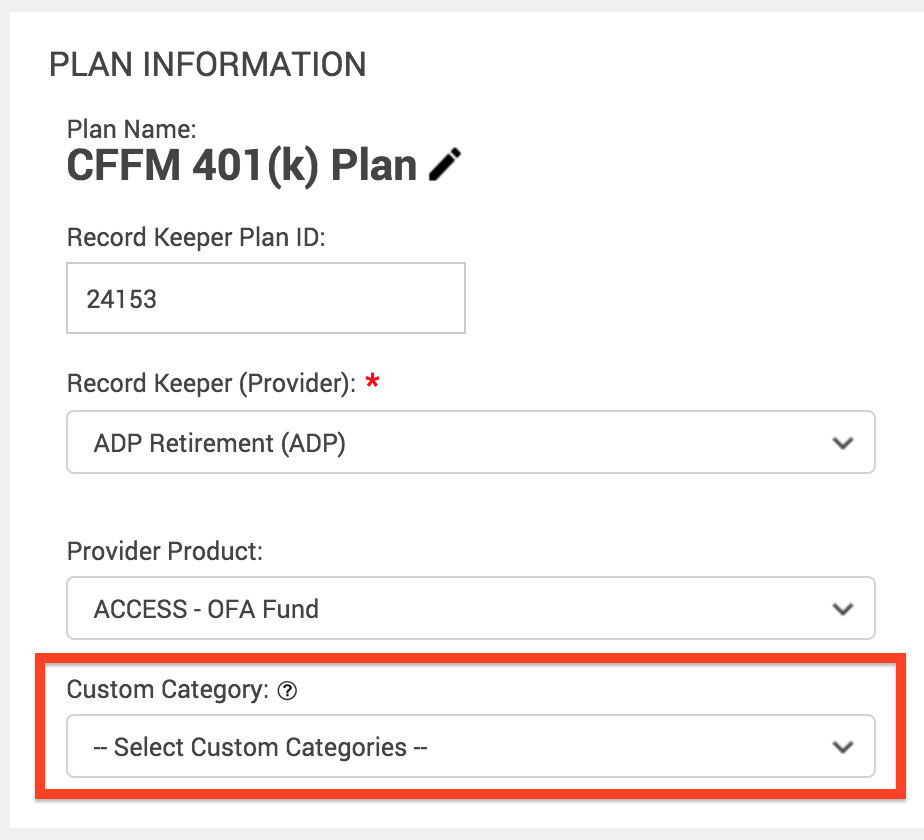
- In the Plan Information section click on the Custom Category drop-down and select the Custom Category option you would like to assign.
- Click Save.
Every fund in this plan is now coded with the Custom Category you have assigned.
Using Custom Categories in Fund Management
- In the navigation menu at the top of the screen click Take Me To and then click Fund Management.
- At the top of the Fund Management screen select a Custom Category option from the Custom Category drop-down filter.

- Click Refresh.
Your search results will populate in the table below the filter options.