Fund Management allows viewing of all funds in all client Plans in your account. Data is shown fund by fund, instead of Plan by Plan.
Fund Management Overview

- Fund Management pulls in data for Client type plans only, Prospect type plans are not included.
- Funds can be filtered by Fund Family, Provider, Asset Category and funds on Watch/Replace.
- Asset Totals for your filtered fund list will display in your search results for uses such as totaling up assets invested under one fund or fund family.
- Fund Management supports changing the status of a fund globally (all Plans which include the fund in their fund lineup) to Existing, on Watch, or Replace. If a fund is set to Replace, Fund Management offers the option to enter the fund to be added.
- Fund Management supports entering a Master Fund Comment, which can be utilized at the Plan level.
- Users can export a detailed template of their book of business onto an Excel sheet by selecting either the Export: Fund List or Fund Comments. This export can be requested after applying filters or just simply clicking the Refresh List button.
- Once either options are selected, the reports will be stored in the Export Archive tab.
- These reports will remain in the Export Archive for 180 days.

Using Fund Management: Filtering the Fund List
- Narrow down your fund as needed by filtering through the drop down boxes at the top of the screen.
- All filter options are “additive” to each other – use them in combination.
- Note that you can select multiple fund families at the same time by using the shift key.
- Click the Refresh button to apply your filter settings and generate your search results.

- Export your filtered fund list to a spreadsheet by clicking the Fund List button.
- Export fund master comments to a spreadsheet by clicking the Fund Comments button.
Make sure you’ve set up the plans in your account accurately with the following key data in the Plan Info section for each plan:
- Plan Type (only Plan Type: Client will display in Fund Management)
- Recordkeeper/Provider
- Provider Product (if available)
If you are a Plan Advice Manager user and want to use Fund Management to sort by recommended Watch or Replace Status, make sure your plans have gone through the PAM Analysis process first.
Using Fund Management: Global Change of Fund Status
- Filter your fund list as needed per the Filtering the Fund List instructions above.
- Click on the Change Status link for the fund.

- Click on the Plans Affected Tab to confirm the scope of the status change, and view the score of the fund in each plan.
- Click on the Change Status tab, then click on the status you want to change to.
- If you click on Replace, you will be asked to optionally add a Replacement Fund, and assign the new fund’s status.
- Enter the fund ticker or utilize the Lookup feature to find a fund. Multiple funds can be added here.
- Click on Change Fund Status to change the fund status.
- If you are changing the fund to Replace status, you can also click on Change Fund Status and Add Funds to change the existing fund to Replace and add the new funds with their assigned status.
- Remember that share classes can influence the fund’s score, which may influence whether you want to change the status of the fund.
- If you are setting a fund to Replace status, you have the option to add a fund with status A (to be added).
- Fund Management can be much more powerful when used together with Plan Advice Manager (PAM).
Using Fund Management: Add Master Comments
- Filter your fund list as needed per the Filtering the Fund List instructions above.
- For the fund you want to add a comment to, click the link for the fund under the Comments column.
- The link will say Add if there has never been a comment added for this fund.
- The link will say Edit if a comment already exists.
- Enter commentary in the Text Editor.
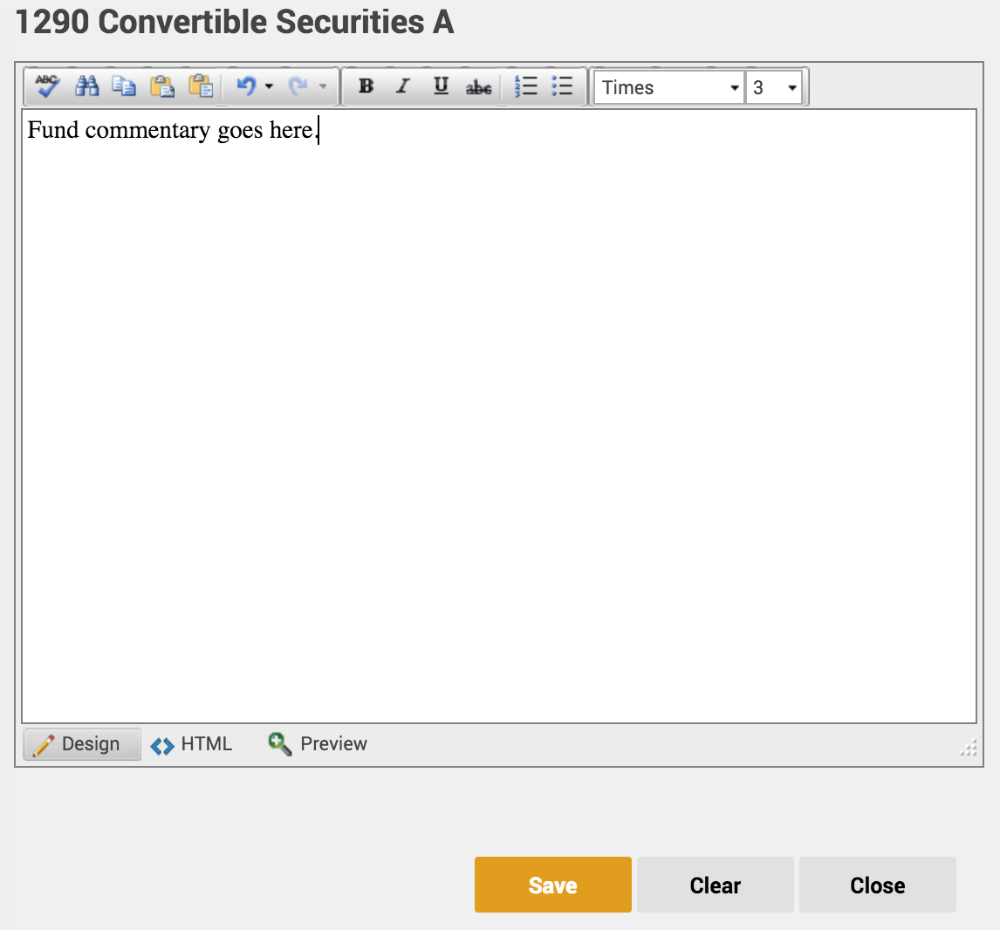
- Click Save and then click Close at the bottom of the text entry screen when finished.
- Master commentary can be populated for all instances of the fund in your plans. In addition, the commentary in these plans will be set to print, assuming you include the Fund Commentary report section to print when setting up your report.