Activity Calendar provides a view of all Activities (Tasks and Events) that you have set up. Activity Management provides a Calendar for your scheduled Events called My Events. Activity Management also provides a "To-Do" like like for your Task items called My Tasks.
My Events
My Events gives you a look at all of your scheduled Event Activities. The Calendar has a multitude of views and functions.

Calendar Views
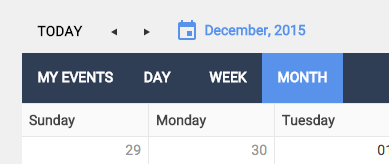
The My Events Calendar can displays your scheduled Events by Day, Week, or Month by clicking on the view you wish to see. You can switch between Days, Weeks, or Months by using the arrows between Today and the blue calendar icon.

Events that fall on your Calendar View will display the Event Title and are color-coded based on if the Event is tied to a Customer (Green), Prospect (Blue), or My Company (Orange). You can filter what appears in the Calendar by relationship by checking or un-checking the corresponding filter option in the upper right-hand corner.

You can hover your mouse over an Event to see more information, or you can click on an Event to pull up the Edit Event Activity window. 
My Tasks
My Tasks gives you a look at all of your Task Activities. The Calendar has a multitude of views and functions.

Task List
The Task List displays Tasks based on the current Calendar View (see above) that you have set.
Tasks are color-coded based on if the Event is tied to a Customer (Green), Prospect (Blue), or My Company (Orange). You can filter what appears in the Calendar by checking or un-checking the corresponding filter option in the upper right-hand corner.

You can jump to the Plan page by clicking on the Related To (Plan Name) for a Task or Company Contact page by clicking on the Company for a Task.
Mark Tasks complete by checking the Mark Complete box for a Task. This will grey out the text for the Task.

You can click on the Edit (pencil) icon to pull up the Edit Task Activity window.
