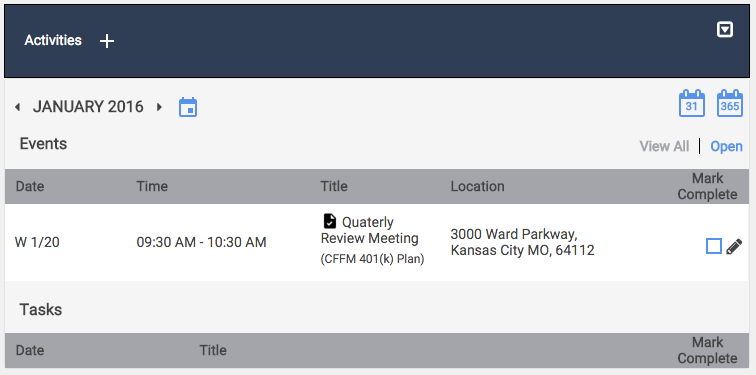
Within your Customer or Prospect contacts you can create Activities. Activities can be either Tasks or Events.
Tasks are "To-Do List" items such as reviewing a Plan's performance, or creating a Fee Analysis Report.
Events are scheduled items such as a Quarterly Meeting with your client, or a scheduled phone call with a prospective client.
Any Activities you create will be accessible on the Activities page as well as available in your Activity Reports.
Creating an Activity for a Customer or Prospect.
- Click Customers or Prospects in the main navigation at the top of the screen.
- Click on the Company Name of the Customer you wish to create an Activity for.
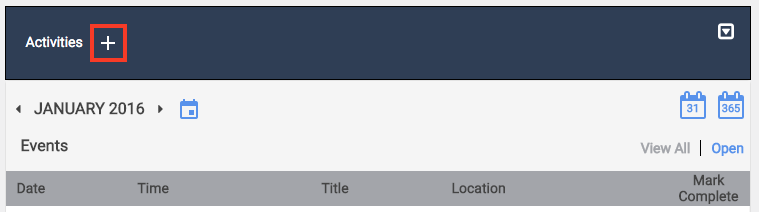
- Click the plus (+) icon in the Activities section of the Customer screen to create a new Activity. The Add an Activity pop-up will open.

- Enter a Title for your Activity.
- Enter a Description for your Activity.
- Set the Type of Activity.
- Tasks are for "to-do list" items .
- Events are for scheduled meetings or activities. You are able to assign a specific time to Events.
- Set the Date (and also Time and Location if an Event) for your activity.
- Choose to Associate Activity to a Plan. If so, move the slider to Yes and select the Plan you wish to associate this activity to from the drop-down list.
- If you need to link a Plan to your Customer contact go to the Link Plans article.
- If you link to a Plan, the list of associated Service Areas will appear. You can select any of these for which the Activity applies to.
- The available services options comes from your Services settings on the Plan Info screen.
- Indicate if this activity is documented in your physical compliance file by clicking the appropriate radio button.
- Indicate if this activity should appear in your Activity Reports.
- Click Save when finished.
The Activity will now be saved and will appear in the Activities section. When your Task or Event has been completed you can check the Mark Complete box for the activity.