Fund Lineup is where you can setup a Plan's fund lineup, fund level fee data, Fee Analysis Report data, and Provider Comparison Report data.
There are three features available in Fund Lineup to help you build your fund lineup -- Quickload, Add Fund, and Custom Funds.
- Quickload is the fastest way to build a fund lineup and allows you input fund ticker symbols or search our fund database.
- Add Fund allows you to search for funds by Asset Category using the Plan's fund evaluation criteria as a filter -- great for searching for replacement funds!
- Custom Fund allows you to manually add any investment/holding that is not a current part of our investment database (useful for Stable Value and Money Market Funds).

Fund Lineup Overview
Accessing Fund Lineup
- Access the Plan List screen by clicking Plan List in the navigation menu at the top of the page.
- Click on a Plan Name.
- Click the hamburger menu icon in the upper left-hand corner next to the FirmPlus logo. The menu will slide in from the left.
- Click the Management option toggle.
- Click Investment Management and then Fund Lineup in the expanded menu.
Fund Lineup provides many functions and features related to managing your Plan's fund lineup. An overview of the functions are below:

- Clicking on the Fund Ticker or Fund Name will load the fund's Scorecard.
- Click on the Clock icon to view Scoring History.
- Click the Comment icon to enter Fund Commentary.
- The Action menu contains various fund functions such as removing a fund, retrieving 12(b)1 Fees, not scoring a fund, and more.
- Assets, 12(b)1 and SubTA fees, Wrap fees, and Other Asset Based Fees data can be entered for each fund in your lineup.
Create a Lineup Using Quickload
- Click the blue Quickload button near the top of the screen.

- On the Fund Ticker Load screen enter the tickers of the funds in your lineup in the open text box.

- Manually type in Ticker Symbols, separated with a comma or space.
- Copy and paste tickers in from a spreadsheet or document.
- If you don't know the ticker symbol of the fund(s) you are attempting to add (or it doesn't have a publicly available ticker symbol) click on the Lookup link to search for the fund. The Ticker Lookup window will open.
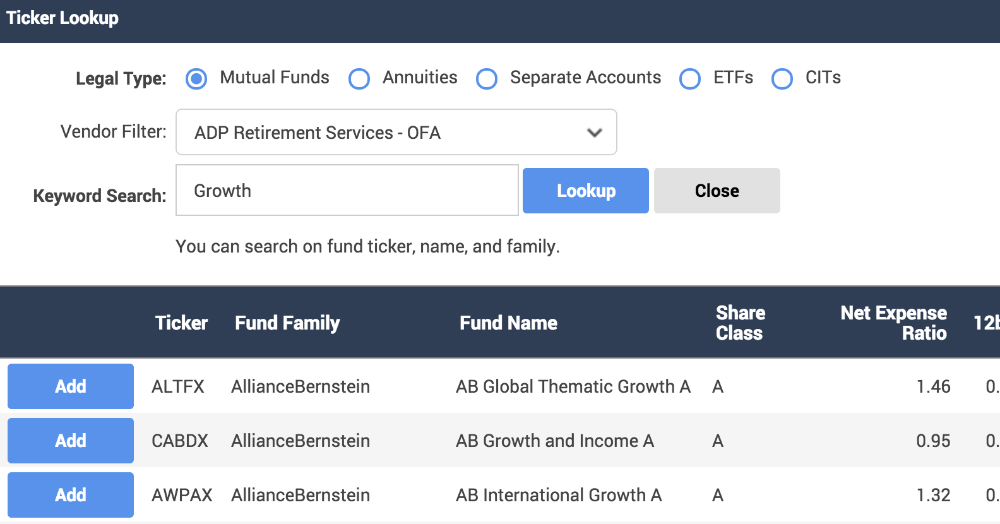
- In the Ticker Lookup window you have filter options available to help you locate the fund you are searching for.
- Legal Type is a required setting and allows you to search within a specific universe of funds
- Vendor Filter allows you to optionally utilize an investment Product Platform to search for investments (e.g. you are searching for a fund for a plan that is currently on the Voya Map Select platform)
- Keyword Search allows you to search for a keyword (e.g. part of the fund name or fund family name).
- You are required to enter a phrase in the Search area. If you are wishing to search an entire Vendor Filter list, you can enter one space (one click on the space-bar on your keyboard) in the Search area. This will cause all funds currently in the Vendor Filter list to appear in your search results.
- When your search results populate, click on the Add button for each fund you want to add to your plan. This will add the ticker(s) to the Fund Ticker Load screen in the background.
- When finished, click the Close button.
- In the Ticker Lookup window you have filter options available to help you locate the fund you are searching for.
- Set the Fund Status for the funds you are adding to your plan. In the Add As area, select a Fund Status button from the drop-down list. A legend is above the drop-down list which defines each Fund Status option.
- Click the Submit button.
- A confirmation message will appear confirmed your funds have been added.
- Click the Return to Fund Lineup. You will return to the Fund Lineup screen and the funds you added will now be visible.
- For each fund in your Fund List enter the Fund Assets in the Assets column for each fund.
- When finished entering Funds and Fund Assets, click on the Save button in the upper right-hand corner.
Searching for Funds Using Add Fund
- Click the blue Add button near the top of the screen. A drop down will open

- Find the Asset Category you wish to add a fund to and click the Add link. The Add Fund window will open.

- You can search for funds by:
- Legal Type
- Vendor Filter
- Ticker Symbol
- Fund Name
- Investment Criteria Rating - Using this search filter will only allow funds to appear in your search results that meet at least the set number of Plan fund evaluation criteria (e.g. if "10" is set, only funds that meet at least 10 of the Plan's criteria will appear in the search results). This is great for searching for funds to replace a failing fund in an Asset Category.
- When your filter options are set, click the Search Funds button to the right. Your search results will appear below.
- Search results are sortable by clicking the column headers in the search results table. For example, clicking the Score column title in the results will sort the results by score from best to worst.
- To add a fund from the search results click the check box next to the fund ticker. Once your selection(s) has been made, click the Add Checked Funds to Selected Funds button above the search results.
- The fund(s) will now appear in the Selected Funds section of the Add Fund window. To finish adding the fund(s) click the Update Draft Portfolio button in the top right corner. The window will then close, and the Draft Portfolio page will refresh and reflect the added fund(s).
Add Custom Funds
Custom Funds can be added to your investment line-up for any investment/holding that is not in our investment database. While these funds won't be scored, you can enter data for display in the Performance Summary report section.
- Hover over the Add Funds button. A drop down-will expand.
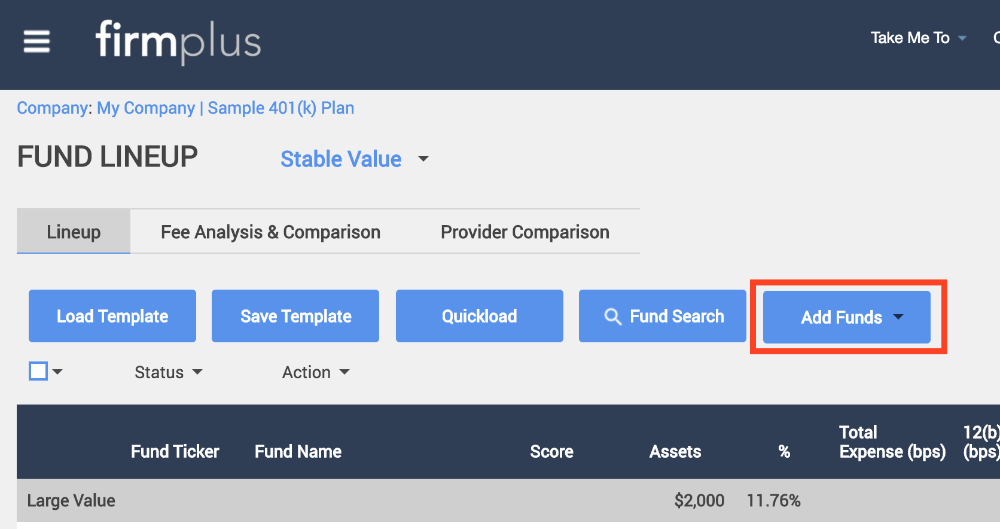
- For the Asset Category you wish to add a Custom Fund to, click the Custom Fund link. The Custom Fund pop-up window will open.
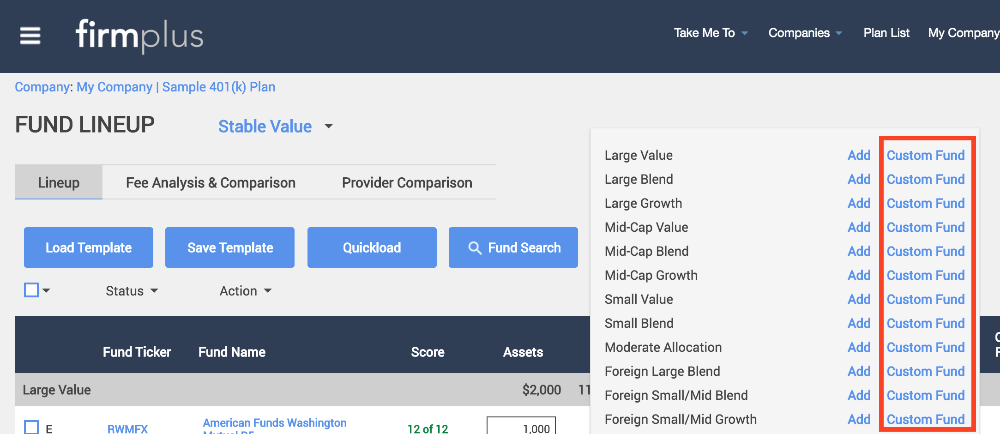
- In the instance a category you wish to add a Custom Fund to is not available, complete the following steps:
- Click the Hamburger Menu icon in the upper left-hand corner.
- Click the Setup toggle option
- Click Fund Evaluation, the menu will expand.
- Click Categories. On the Categories screen check any categories you wish to add a Custom Fund to and click Save.
- Return to the Fund Lineup screen and repeat Step 2 above.
- In the Custom Fund window the only required data to be entered is the Fund Ticker (which can be a made-up ticker) and the Fund Name. The rest of the fields are able to be filled out as you have data available. For example the ticker could be “JHSV”, and the Fund Name “John Hancock Stable Value”
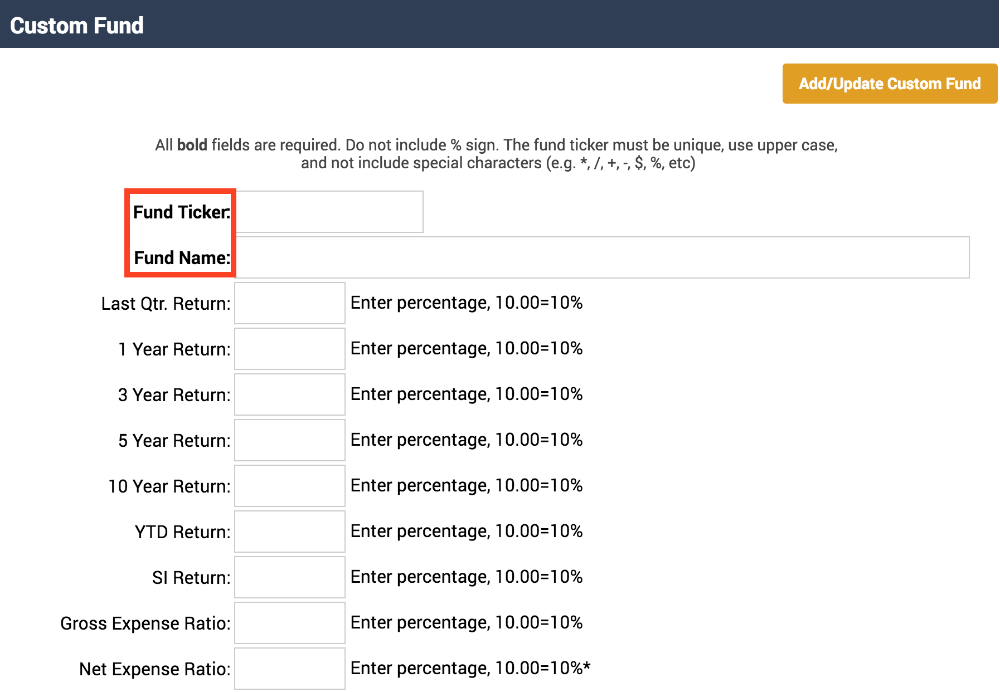
- Click Add/Update Custom Fund in the upper right-hand corner to add your Custom Fund to your lineup. The window will close.
- Your Custom Fund will appear in your investment lineup on the Fund Lineup screen. You can add assets to this like you would any other fund by entering the asset figure into the Assets column for your Custom Fund.
Stable Value Funds
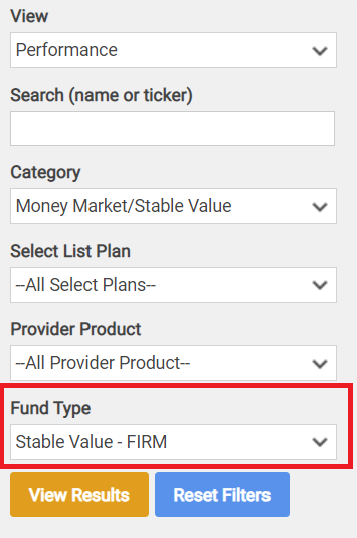
As MorningStar does not provide Fund Fact Sheets for Stable Value Funds, we have provided you the ability to include those profiles by searching within our own Stable Value database. Using the Stable Value - FIRM search filter allows you the ability to search for Stable Value funds that includes not only performance data, but the Fund Profiles as well. Now, when generating a report with the Fund Fact Sheets section, you'll be able to view FirmPlus Stable Value Fact Sheets.
Using the Lookup feature inside of Quickload, you'll see the Stable Value - FIRM option at the Legal Type filter.
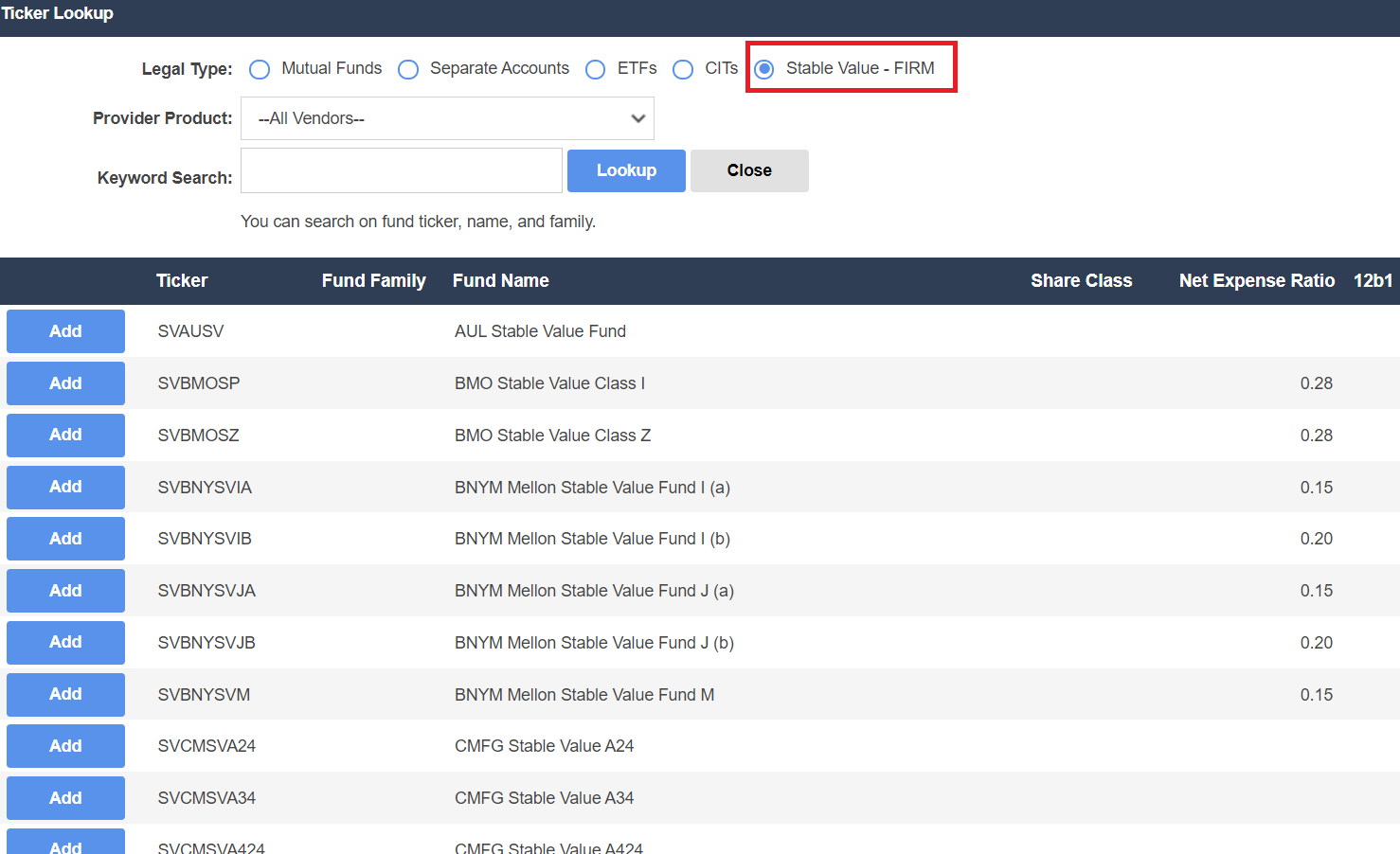
Using the Fund Search option, you'll see the Stable Value - FIRM option located at the bottom of the filter list, under the Fund Type dropdown menu.