Fund Lineup Management is where lineup slots are managed for a Plan. You can create additional lineups in a Plan for purposes of running a Provider Comparison Report, storing copies of historical lineups, creating proposal or alternative lineups, or for fund research.
Accessing Fund Lineup Management
- Access the Plan List screen by clicking Plan List in the navigation menu at the top of the page.
- Click on a Plan Name.
- Click the hamburger menu icon in the upper left-hand corner next to the FirmPlus logo. The menu will slide in from the left.
- Click the Management option toggle.
- Click Investment Management and then Fund Lineup Management in the expanded menu.
Creating New Lineups
Each Plan that you create automatically has a "Default Lineup" (which can be renamed). Creating additional lineups can be completed following the steps below:
- In the Add Lineup section enter a Lineup Name in the Title text box.
- Click the Add button.

- You can set the Default Lineup (the lineup that will automatically load when you access the Plan) by marking the radio-button to the left of the lineup in the Lineups table at the bottom of the screen.
- You can delete a lineup you have created by clicking the trash-can icon to the right of the lineup in the Lineups table at the bottom of the screen.
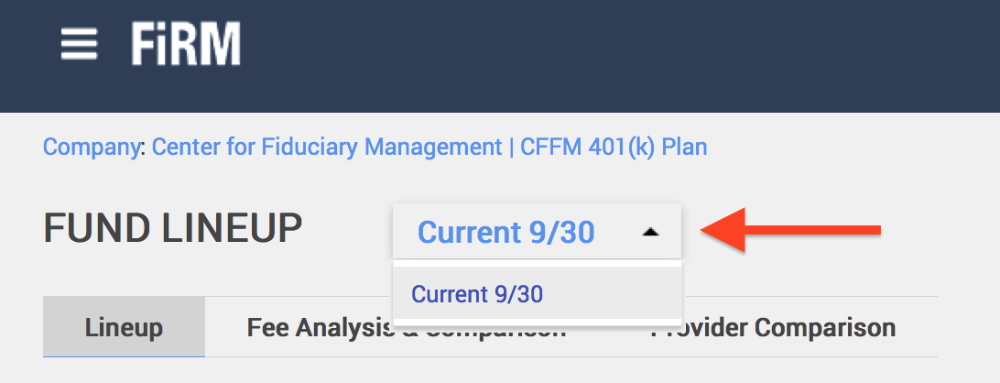
The newly created lineup can be accessed / modified on the Fund Lineup screen by clicking the lineup drop-down towards the top of the screen.
Including Lineups in Provider Comparison Report
Lineups you have created in your Plan can be selected to be included in a Provider Comparison Report.
- In the Lineups section mark the checkbox to the right of the row for the lineup you wish to include.
- You can change the order in which lineups show in your Provider Comparison Report by using the up/down arrows next to the checkbox.
