Lineup Comparison provides a single report which compares between 2 and 5 Lineups based on investment performance and expenses.
- Multiple lineups under Fund Lineup Management must be created underneath a client prior to using the tool.
- Each lineup consists of an individual list of funds and assets that are unique to that lineup so they must be entered separately.
Setting up the Lineup Comparison Report is done in three steps:
-
Fund Lineup Management
-Create and select the Fund Lineups to be included in the Report.
-
Setup Investment Lineups
-Fee data, and notes for each included Fund Lineup.
-
Generate Lineup Comparison Report
Setup Lineup Comparison Report
1
Fund Lineup Management
Setup Fund Lineups
- Click Plan List in the navigation menu at the top of the page.
- Click on a Plan Name.
- Click the hamburger menu icon in the upper left-hand corner next to the FirmPlus logo. The menu will slide in from the left.
- Click the Setup option toggle.
- Click Investment Management and then Fund Lineup Management in the expanded menu.
- Create as many Lineups as you will need for your Lineup Comparison Report.
- If you need assistance creating a Lineup, see the Fund Lineup Management article.
Including Lineups in Lineup Comparison Report
- Lineups you have created in your Plan can be selected to be included in a Lineup Comparison Report.
- In the Lineups section mark the checkbox to the right of the row for the lineup you wish to include.
- You can change the order in which lineups show in your Lineup Comparison Report by using the up/down arrows next to the checkbox.

2
Setup Investment Lineups
Access Lineup Comparison Setup
- Click Plan List in the navigation menu at the top of the page.
- Click on a Plan Name.
- Click the hamburger menu icon in the upper left-hand corner next to the FirmPlus logo. The menu will slide in from the left.
- Click the Management option toggle.
- Click Investment Management and then Fund Lineup in the expanded menu.
- Click on the Lineup Comparison tab.
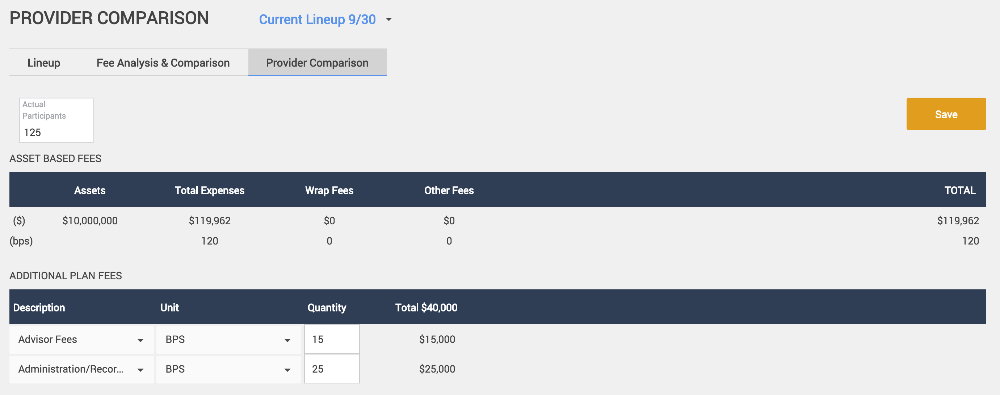
OPTIONAL - Enter Plan Fees
- Enter current participants in the Actual Participants text box.
- The Asset Based Fees section gives a summary of the Fund Lineup.
- Enter Additional Plan Fees based on the fee structure of the Lineup(s) you are including in your report.
- If you need additional fee title options you can create them in Fee Management.
- Click the gear icon in the upper-right hand corner. Click Fee Types Management. From here you can edit Fee Titles.
- If you need additional fee title options you can create them in Fee Management.
- Enter Service Fee Notes, Plan Lineup Expense Notes, and Performance Summary notes as needed.
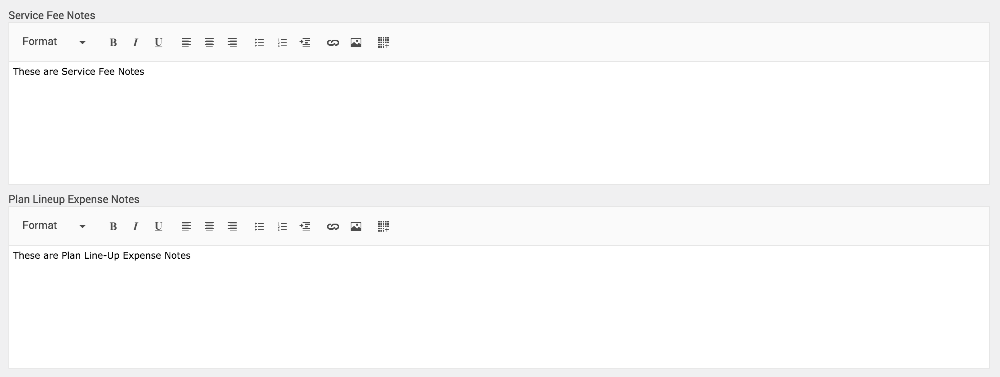
- Click Save when finished entering data.
Repeat this process for all Lineups you are including in your Report. To switch between Lineups click the Lineup drop-down box. Click the name of the Lineup you would like to load.

3
Generate Lineup Comparison Report
- Click the hamburger menu icon in the upper left-hand corner next to the FirmPlus logo. The menu will slide in from the left.
- In the menu click Reports then Lineup Comparison.
There are two Report Section lists displayed on the page. The list on the left are Available Report Sections that can be included in your report. The list on the right are Chosen Report Sections that have been selected to appear in the report you generate.You can move sections between lists by clicking on them and using the left/right arrows between the two Report Section lists.
- You can modify the report section ordering in the Chosen Report Sections list by clicking on the section and then using the up/down arrows on the right side of the list to move the report section.
- The last generated Report configuration will default in the Chosen Report Sections list.
- After you are finished organizing you report, click the Generate Report button to generate your Lineup Comparison Report.
- Reports are produced on demand and can be produced as many times as needed.

- When your report is finished generating a link to View Report will appear. Clicking this link will open/download the report (depending on your web-browser settings).
Report Templates
Report Templates allows you to quickly load a pre-configured Report for any Plan in your account.
- Click on the Report Templates drop-down list at the top of the screen.

- Click on the Template you wish to load. The template will load and the Chosen Report Section configuration will be applied automatically.
You can create a new Report Template based on your selections using the Save as Report Template button. Save Current Configuration allows you to save the choices you’ve made locally to this individual plan.