
If you have feedback or ideas for new features for FirmPlus, please send those to Fi360Support@broadridge.com.
We would love to hear from you!
Unlimited Plan Name Changes
No more having to send an email to us to get a Plan Name changed! Now just access the Plan Info screen for a Plan and click the pencil icon next to the Plan Name. Then simply enter the new Plan Name in the text box and click Update.

Timeout Warning
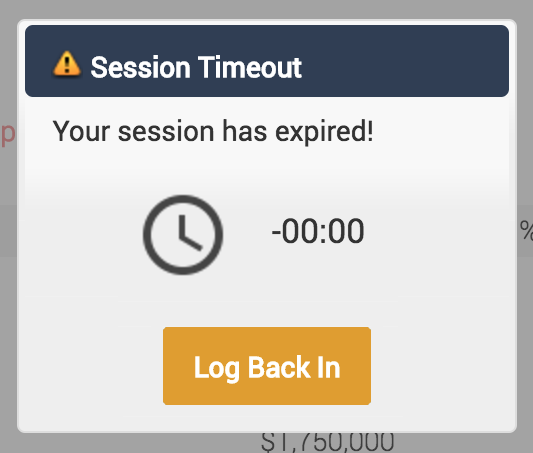
After 55 minutes of inactivity, a message will appear with a 5-minute-countdown to alert you that your FirmPlus session is about to expire. To stay logged in just click the Keep me logged in button. If the timer runs out, a second message will appear to alert you that your session has expired. When you click Log Back In, you will be redirected to the log-in screen.
Warning Message

Expired Session
Fiduciary Status in Plan List
On the Plan List screen you can now see the Fiduciary Status of all Plans.

QDIA Indicator in Executive Summary
FirmPlus now allows you to show a fund as a QDIA on the Executive Summary report section. This is done from the Fund Lineup screen by selecting a fund and using the Action drop down to select the "Indicate Fund is QDIA on Executive Summary" option.

Any funds selected as a QDIA display a Q icon on the Fund Lineup screen.

An example of how the the Executive Summary displays the QDIA indicator can be downloaded here.
Custom Funds in Lineup Mapping
You can now map to and from Custom Funds on the Lineup Mapping screen. This allows you to map funds in our investment database to Custom Funds, Custom Funds to other Custom Funds, and vice-versa.

Plan Sponsor Activity Log
FirmPlus now tracks the log in and download/upload activity of the Plan Sponsor (and all other roles) when they access the Plan Vault.
You can review the activity log by accessing the Plan Portal Config screen from the main menu, and clicking the Log In Activity tab. The log displays the Name, Role, Date, Action (log In, document upload, document download,) and a Description (what was downloaded/uploaded, or the I.P. address of the log in).

Company Name in Plan Sponsor Portal
In the Plan Sponsor Portal, the Company Name field now displays the name of the Company (Customer or Prospect) associated with the Plan.

Delete Lineup Templates
Previously, in order to remove Lineup Templates you had to contact our Support Team. You now have the ability to delete Lineup Templates at the Plan level.
Inside any Plan on the Fund Lineup screen, when you click the Load Template button, the list of available Lineup Templates shows a red trash icon. Clicking this will delete the template from your account.

Passive Scoring in Fund Management
When reviewing funds in Fund Management there is now an option to display Separate Passive Fund Scoring for Index Funds online.
When using these new options, the Fund Level details include new columns indicating if the fund is an Index Fund, and the Scoring Method used. For the Plan Level detail, the Scoring Method, Fund Score, Score History and Score Status will reflect the scoring settings used at the Plan Level.
To use this new feature select Show Separate Passive Scoring for Index Funds at the bottom of the filters section before clicking the Refresh button.

Additional Columns in Fund Management Export
The Export Fund List feature has been updated with the Score Status reflecting Separate Scoring choices (Active, Passive, Target Date) at the Plan/Fund Level and additional columns for Index Fund indicator, Scoring Method and Historical Scoring have been added.

Download a sample of an exported Fund List