The IPS generator will quickly create a an Investment Policy Statement document based on information you’ve already entered for a Plan.
The IPS template can be modified to match up with your advisory firm’s branding and content on the IPS Template screen.
Accessing IPS Generator
- Access the Plan List screen by clicking Plan List in the navigation menu at the top of the page.
- Click on a Plan Name.
- Click the hamburger menu icon in the upper left-hand corner next to the FirmPlus logo. The menu will slide in from the left.
- Click the Setup option toggle.
- Click Plan Configuration and then Investment Policy in the expanded menu.
Generate an IPS for a Plan
- Verify the information listed on the page is current and accurate, if it is not you can click Update your Plan Info to go back to the appropriate pages to correct the data.
- Once the information on the page is correct, you can click Download Draft IPS to have the system generate the IPS document and download it onto your computer. Once downloaded the file can be modified, saved, and emailed just as you would any other document.

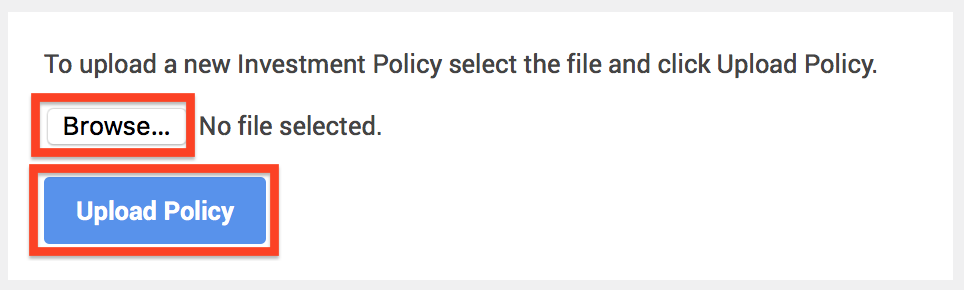
- If you do modify the document or you have a signed copy to upload into the tool, you can click Browse from this page to locate the file on your computer, and then upload it into the system by clicking Upload Policy.